> ## Documentation Index
> Fetch the complete documentation index at: https://docs.context.dev/llms.txt
> Use this file to discover all available pages before exploring further.
# Microsoft Excel
> Drop company logos into Excel cells with Logo Link and the IMAGE() function. Works in Excel for Microsoft 365 and Excel for the web.
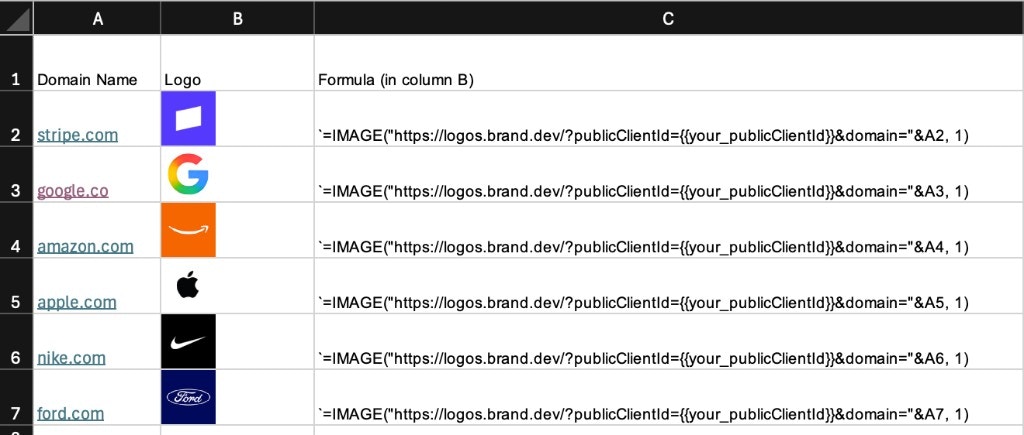
Logo Link URLs return image bytes directly. Pair them with Excel's [`IMAGE()`](https://support.microsoft.com/en-us/office/image-function-7e112975-5e52-4f2a-b9da-1d913d51f5d5) function and any cell becomes a logo.
 The `IMAGE()` function is available in Excel for Microsoft 365, Excel for Microsoft 365 for Mac, Excel for the web, Excel 2024, Excel 2024 for Mac, Excel for iPhone, and Excel for Android phones. It is **not** available in older perpetual-license desktop Excel versions.
## Prerequisites
* A Context.dev account with a Logo Link `publicClientId` (prefix `brandLL_`). Copy it from the [Logo Link dashboard](https://context.dev/dashboard/logolink).
## Basic usage
Use `IMAGE()` with a Logo Link URL:
```
=IMAGE("https://logos.context.dev/?publicClientId=brandLL_xxx&domain=github.com")
```
## Dynamic domains
Reference a cell containing the domain instead of hardcoding it. If cell `A2` holds `github.com`:
```
=IMAGE("https://logos.context.dev/?publicClientId=brandLL_xxx&domain=" & A2)
```
Drag the formula down a column to fetch logos for an entire list of domains.
## Syntax
From [Microsoft's `IMAGE()` reference](https://support.microsoft.com/en-us/office/image-function-7e112975-5e52-4f2a-b9da-1d913d51f5d5):
```
=IMAGE(source, [alt_text], [sizing], [height], [width])
```
| Argument | Purpose |
| ----------------- | --------------------------------------------------------- |
| `source` | URL of the image (must use `https`). Required. |
| `alt_text` | Alternative text for accessibility. Optional. |
| `sizing` | Image sizing mode (see below). Optional. |
| `height`, `width` | Custom dimensions in pixels. Used only with `sizing = 3`. |
### Sizing modes
| Value | Behavior |
| ----- | ------------------------------------------------------------- |
| `0` | Fit the image in the cell and maintain aspect ratio (default) |
| `1` | Fill the cell with the image; ignore aspect ratio |
| `2` | Use the original image size; may exceed the cell boundary |
| `3` | Customize the image size with `height` and `width` |
Example with alt text and fill mode:
```
=IMAGE("https://logos.context.dev/?publicClientId=brandLL_xxx&domain=github.com", "GitHub logo", 1)
```
Adjust row height and column width so logos display at a reasonable size. Sizing mode `0` (fit and maintain aspect) usually looks best. Icons and monograms are square; wordmarks may be wider.
## Fallbacks
If a logo isn't published for a domain, Logo Link automatically returns a generated **monogram** based on the domain name. Note that the monogram is an SVG, which Excel's `IMAGE()` can't render (see [Limitations](#limitations)), so for unknown domains the cell may stay blank rather than show the fallback.
## Limitations
* **No SVG.** Excel's `IMAGE()` supports BMP, JPG/JPEG, GIF, TIFF, PNG, ICO, and WEBP (WEBP is unsupported on Web and Android). It does not render SVG. Most Logo Link responses for known brands are PNG, but the monogram fallback is SVG and won't render, so pass a known domain when you can.
* **HTTPS only.** `IMAGE()` requires `https`. Logo Link is `https://logos.context.dev/...`, so this is already met.
* **No redirected URLs.** If the source URL redirects, Excel blocks it for security. Logo Link serves the image bytes directly, no redirects.
* **No auth-gated URLs.** If the source URL requires authentication, the image doesn't render. Logo Link's `publicClientId` is a query-string parameter, not auth, so it works.
## Next steps
Same workflow in Google Sheets with the `IMAGE()` formula.
All Logo Link URL options and the publicClientId setup.
Programmatic enrichment for spreadsheet rows beyond logos.
Grab your publicClientId and lock it to your own domain.
The `IMAGE()` function is available in Excel for Microsoft 365, Excel for Microsoft 365 for Mac, Excel for the web, Excel 2024, Excel 2024 for Mac, Excel for iPhone, and Excel for Android phones. It is **not** available in older perpetual-license desktop Excel versions.
## Prerequisites
* A Context.dev account with a Logo Link `publicClientId` (prefix `brandLL_`). Copy it from the [Logo Link dashboard](https://context.dev/dashboard/logolink).
## Basic usage
Use `IMAGE()` with a Logo Link URL:
```
=IMAGE("https://logos.context.dev/?publicClientId=brandLL_xxx&domain=github.com")
```
## Dynamic domains
Reference a cell containing the domain instead of hardcoding it. If cell `A2` holds `github.com`:
```
=IMAGE("https://logos.context.dev/?publicClientId=brandLL_xxx&domain=" & A2)
```
Drag the formula down a column to fetch logos for an entire list of domains.
## Syntax
From [Microsoft's `IMAGE()` reference](https://support.microsoft.com/en-us/office/image-function-7e112975-5e52-4f2a-b9da-1d913d51f5d5):
```
=IMAGE(source, [alt_text], [sizing], [height], [width])
```
| Argument | Purpose |
| ----------------- | --------------------------------------------------------- |
| `source` | URL of the image (must use `https`). Required. |
| `alt_text` | Alternative text for accessibility. Optional. |
| `sizing` | Image sizing mode (see below). Optional. |
| `height`, `width` | Custom dimensions in pixels. Used only with `sizing = 3`. |
### Sizing modes
| Value | Behavior |
| ----- | ------------------------------------------------------------- |
| `0` | Fit the image in the cell and maintain aspect ratio (default) |
| `1` | Fill the cell with the image; ignore aspect ratio |
| `2` | Use the original image size; may exceed the cell boundary |
| `3` | Customize the image size with `height` and `width` |
Example with alt text and fill mode:
```
=IMAGE("https://logos.context.dev/?publicClientId=brandLL_xxx&domain=github.com", "GitHub logo", 1)
```
Adjust row height and column width so logos display at a reasonable size. Sizing mode `0` (fit and maintain aspect) usually looks best. Icons and monograms are square; wordmarks may be wider.
## Fallbacks
If a logo isn't published for a domain, Logo Link automatically returns a generated **monogram** based on the domain name. Note that the monogram is an SVG, which Excel's `IMAGE()` can't render (see [Limitations](#limitations)), so for unknown domains the cell may stay blank rather than show the fallback.
## Limitations
* **No SVG.** Excel's `IMAGE()` supports BMP, JPG/JPEG, GIF, TIFF, PNG, ICO, and WEBP (WEBP is unsupported on Web and Android). It does not render SVG. Most Logo Link responses for known brands are PNG, but the monogram fallback is SVG and won't render, so pass a known domain when you can.
* **HTTPS only.** `IMAGE()` requires `https`. Logo Link is `https://logos.context.dev/...`, so this is already met.
* **No redirected URLs.** If the source URL redirects, Excel blocks it for security. Logo Link serves the image bytes directly, no redirects.
* **No auth-gated URLs.** If the source URL requires authentication, the image doesn't render. Logo Link's `publicClientId` is a query-string parameter, not auth, so it works.
## Next steps
Same workflow in Google Sheets with the `IMAGE()` formula.
All Logo Link URL options and the publicClientId setup.
Programmatic enrichment for spreadsheet rows beyond logos.
Grab your publicClientId and lock it to your own domain.