

IMAGE() function to render a logo in a cell when one is available.
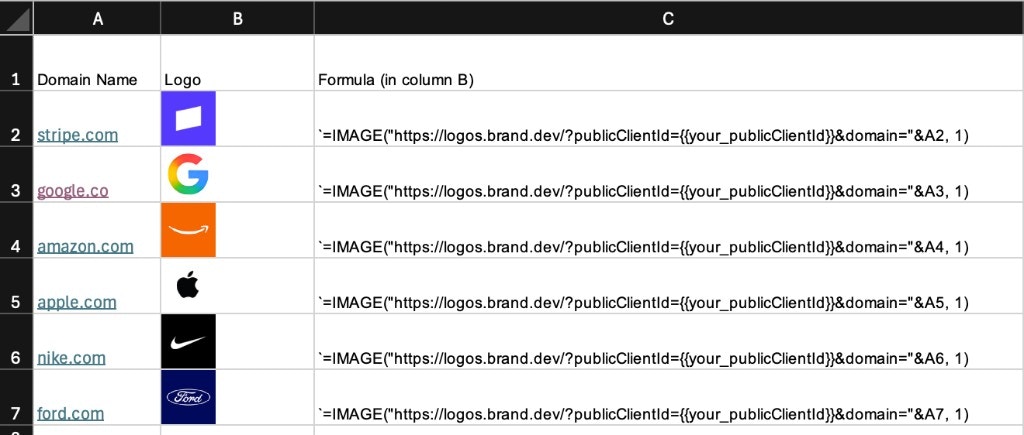
The
IMAGE() function is available in Excel for Microsoft 365, Excel for Microsoft 365 for Mac, Excel for the web, Excel 2024, Excel 2024 for Mac, Excel for iPhone, and Excel for Android phones. It is not available in older perpetual-license desktop Excel versions.Prerequisites
- A Context.dev account with a Logo Link
publicClientId(prefixbrandLL_). Copy it from the Logo Link dashboard.
Add a logo
ReplacebrandLL_xxx with your public client ID, then paste this formula into a cell:
Use a domain column
Reference a cell containing the domain instead of hardcoding it. If cellA2 holds github.com:
Syntax
From Microsoft’sIMAGE() reference:
Sizing modes
Example with alt text and fill mode:
Handle missing images
Not every domain resolves to an image that Excel can display. Keep the domain visible in another column and useIFERROR when a blank cell is preferable to a formula error:
Limitations
- Excel applies its own URL, format, redirect, and security rules to
IMAGE(). A URL that renders in a browser can still appear blank in a workbook. - Logo Link can return different image media types. Check the response’s
Content-Typewhen diagnosing a format-specific failure. - Referring-domain restrictions can behave differently when Microsoft fetches the image. Test the exact workbook flow rather than weakening the restriction by default.
- Do not download, persist, or rehost the returned Logo Link image file. Follow the Logo Link usage boundaries.
Next steps
Google Sheets
Same workflow in Google Sheets with the
IMAGE() formula.Logo Link reference
All Logo Link URL options and the publicClientId setup.
Zapier integration
Programmatic enrichment for spreadsheet rows beyond logos.
Logo Link dashboard
Manage your public client ID, restrictions, and usage.